Does the iPhone XR have eSIM? Everything You Need to Know
iPhone XR supports eSIM on US, global and Japan models, but A2107 and A2108 models from China, Hong Kong and Macau do not. Travellers can use one physical SIM and one active eSIM together, store multiple eSIM profiles and set up a travel eSIM before flying.

iPhone XR supports eSIM on US, global, and Japan models, but the China, Hong Kong, and Macau variants (A2107 and A2108) ship with two physical nano-SIM slots and no eSIM at all. Apple announced the XR alongside the XS and XS Max in September 2018 and released it that October, making it part of the first generation of eSIM-capable iPhones.
The Apple iPhone XR eSIM works the same way it does on those siblings: one physical nano-SIM in the tray, one embedded SIM (eSIM) in software, both running at the same time. Your model number, printed in Settings, determines whether the feature is available to you.
This blog covers which models are iPhone XR eSIM compatible, how to add eSIM in iPhone XR step by step, how many profiles the device stores, what to do when activation fails, and whether "does iPhone XR have eSIM?" performance that still holds up for travel today.
Quick Answer: iPhone XR eSIM Compatibility
Is Every iPhone XR eSIM Compatible?
No. Three of the five regional variants carry an eSIM chip; the China-market models do not. Whether your handset supports the feature comes down to where it was originally sold, so "does iPhone XR support eSIM?" is a question best answered by checking the model number rather than assuming.
Apple built the China-market XR with a dual-sided physical SIM tray rather than an eSIM chip, a design decision driven by local regulation and carrier preference at the time.
A handset bought in Shenzhen or Hong Kong accepts two plastic SIM cards but will never show an eSIM option in Settings, regardless of software version. This is a hardware difference and cannot be resolved with an update.
To check yours:
Settings → General → About → Model Number. Tap the number once to reveal the full identifier beginning with A.
Carrier lock matters too. An eSIM-capable handset that is locked to a network may have the feature restricted to that network's own plans. Before buying an eSIM for iPhone XR from a third party, confirm the device is unlocked.
On iOS 14 and later, Settings → General → About → Carrier Lock will show "No SIM restrictions" on an unlocked device. On older software, this field does not appear, so contact your carrier directly to confirm.
Read more: Comparing the XR with another first-generation eSIM model? See Does iPhone XS Max support eSIM? Complete guide for model compatibility, dual SIM support and regional limits.
How eSIM Works on iPhone XR
Do iPhones Have SIM Cards or eSIM?
On the XR, both. A nano-SIM tray sits on the right edge of the phone, and a separate eSIM chip is soldered onto the logic board where it cannot be removed or swapped.
Carrier details are written to that chip digitally rather than arriving on a card, which is the entire practical difference. The Apple iPhone XR eSIM sits dormant until you install a plan onto it.
eSIM vs Physical SIM
A physical SIM is hardware you handle: open the tray, swap the card, keep the old one safe. An eSIM is a file. It downloads over Wi-Fi, sits in the phone's secure storage, and can be switched on or off from Settings without touching the tray. For a more detailed comparison, see our guide on eSIM vs Physical SIM.
Day to day, there is no functional difference. Calls, texts and data behave identically whichever line carries them. The difference shows up when you change plans, which takes seconds on an eSIM and a trip to a shop on a physical SIM.
Running two numbers at once
The XR uses Dual SIM Dual Standby (DSDS), meaning both lines stay registered on their networks simultaneously. Either line can ring, either can receive a text. Only one carries mobile data at any moment, and you choose which in Settings → Mobile Data.
During setup, iOS asks you to label each line and nominate a default. The default line handles outgoing calls and messages unless you override it per contact. Most travellers leave the home number as default for voice and assign data to the eSIM.
Typical configurations:
- Home nano-SIM for calls and texts, travel eSIM for data abroad
- Personal number on one line, work number on the other
- A single eSIM data plan with the tray left empty
Read more: Considering a newer device? Read Does iPhone 11 support eSIM? Everything you need to know to compare eSIM support, setup and travel use.
How to Add eSIM in iPhone XR and Activate It
Before you start, connect to Wi-Fi, confirm the phone runs iOS 12.1 or later under Settings → General → Software Update, and have your provider's Quick Response (QR) code to hand.
Step 1 - Open Settings and tap Mobile Data. On some iOS versions, this reads Cellular or Mobile Service.
Step 2 - Tap Add eSIM, or Add Mobile Plan depending on your software version.
Step 3 - Select Use QR Code and point the camera at the code supplied by your provider. iOS reads it and displays the plan details for confirmation.
Step 4 - If the code will not scan, tap Enter Details Manually and type the activation server address and activation code from your provider's confirmation email.
Step 5 - Tap Add Mobile Plan to install. The download usually completes quickly on a stable connection.
Step 6 - Label the line when prompted. Something specific beats something generic: "Spain Data" is more useful than "Secondary" when you have several profiles stored.
Step 7 - Choose your default voice line and your mobile data line. These are separate settings, so you can keep voice on the home number while data runs through the eSIM.
Settings → Mobile Data → Add eSIM → Scan QR → Label → Set Default Voice → Set Data Line
That is the complete process to activate eSIM on iPhone XR. Most providers let you install the profile days before departure and switch it on when you land, which is the sensible approach if you want connectivity the moment the plane doors open.
Knowing how to add an eSIM in iPhone XR before you fly removes any dependence on airport Wi-Fi at the other end.
Read more: Looking at the next generation? Explore "Does iPhone 12 support eSIM? Here's the real answer for activation steps, compatibility and dual SIM details.
Benefits of Using an eSIM on iPhone XR
Skip international roaming charges. UK networks commonly charge around £2 to £2.60 per day for EU roaming and considerably more elsewhere. A regional data plan on an eSIM for iPhone XR typically costs less across an entire trip than a few days of those daily fees.
Keep your primary number live
Swapping to a local physical SIM takes your usual number offline for the duration. Dual SIM does not. Your contacts reach you as normal while the eSIM handles data.
How to Prevent Roaming on iPhone
With the eSIM installed and carrying data, open Settings → Mobile Data, tap your physical SIM line, and switch Mobile Data off for that line specifically. Voice and texts stay active on the home number; data cannot leak through it. This is the single most effective way to avoid an unexpected bill on return.
Change carrier without changing hardware
Store profiles from several providers and switch between them in Settings. No tray tool, no lost cards, no queuing at an airport kiosk.
Set up in advance
Buy and install before you fly, then activate on arrival. Particularly useful for late-night landings and airports where the SIM counters have closed.
Practical for frequent trips
Multiple stored profiles mean a regular traveller can keep plans for their common destinations permanently installed and simply toggle the relevant one on. This is where "does iPhone XR have eSIM?" support becomes genuinely useful rather than just a specification on paper.
6 Common iPhone XR eSIM Issues and How to Fix Them
#1. No eSIM option in Settings
Three likely causes. The handset is an A2107 or A2108 China-market model with no eSIM chip. The software predates iOS 12.1. Or the carrier has disabled the feature on a locked device. Check the model number first, then the iOS version, then carrier lock status.
#2. QR code will not scan
Raise screen brightness on whichever device is displaying the code and clean the camera lens. If it still refuses, use manual entry with the activation server address and code from your provider.
#3. Activation failed
Almost always a connectivity issue during install or a provider-side server problem. Confirm you are on stable Wi-Fi, restart the phone, and retry. If it fails twice, contact the provider, as the profile may need reissuing. A QR code can usually only be installed once.
#4. No mobile data after setup
Check Settings → Mobile Data and confirm the eSIM line is switched on and selected as the data line. If you are already abroad, also enable Settings → Mobile Data → Mobile Data Options → Data Roaming for the eSIM line. Travel eSIMs require roaming to be enabled because they connect through partner networks.
#5. Carrier not supported
Not every network offers eSIM provisioning. If yours does not, a dedicated travel provider remains an option: the eSIM handles data while your existing physical SIM continues handling calls.
#6. Software too old
The XR shipped on iOS 12, and eSIM requires 12.1 at minimum. Settings → General → Software Update. The XR receives updates well beyond that version, so this is a quick fix.
Is the iPhone XR Still Good for Travel?
For connectivity purposes, yes. The XR remains fully iPhone XR eSIM compatible with current providers, and installation behaves no differently than on a recent handset. Maps, translation, boarding passes, ride-hailing, and messaging all run comfortably on the A12 Bionic chip.
Dual SIM is where the XR still earns its place in a travel kit. Home number in the tray, international eSIM handling data, no compromise between staying reachable and avoiding roaming charges.
Two limitations are worth knowing
The XR cannot run two eSIMs simultaneously, a capability that arrived with the iPhone 13 generation, so multi-country trips mean switching between stored profiles rather than running two at once.
It takes a few taps. Second, the XR does not support 5G, so a travel eSIM connects at 4G speeds. For navigation, messaging and general browsing, this is more than adequate. For heavy video streaming on the move, it is a noticeable step down from newer phones.
Neither limitation is a reason to replace a working handset before a trip. Does iPhone XR have eSIM capability equal to a current model? Not quite, but the gap only matters in specific circumstances.
Read more: Need support for two active eSIMs? See "Does your iPhone 13 have eSIM capability: what you need to know and how it improves on the XR".
How to Choose the Best eSIM for iPhone XR
Destination coverage
Check the plan covers every country on your route, not just the first. Single-country plans stop working at the border; regional and global plans do not.
Data allowance
Navigation and social media consume more than most people estimate. As a rough guide only, a gigabyte (GB) or two suits a short trip with light use, while a fortnight of ordinary use is more comfortable on 5GB or above. Check your own recent monthly usage in Settings → Mobile Data for a realistic benchmark.
Validity window
Confirm the plan runs for the length of your trip. Some expire on a fixed day count from activation regardless of unused data.
Regional versus country plans
For a single destination, a country plan is usually cheaper per gigabyte. For anything crossing borders, a regional plan avoids buying and switching several profiles.
Hotspot support
If you tether a laptop or share with travel companions, verify tethering is permitted. Not all plans allow it.
Support access
Problems tend to surface on arrival, at inconvenient hours. Look for 24/7 support reachable over WhatsApp rather than an email queue.
Perks worth having
Some providers include extras that matter in practice: app access that continues after the data allowance runs out, in-app calling, or lounge access on delayed flights.
Jetpac eSIM: Your Next Destination Companion
Jetpac is one provider worth comparing for XR users. It runs across 200-plus destinations on a single profile, permits hotspot sharing, and keeps WhatsApp, Google Maps, Uber and Grab working even once the data allowance is exhausted.
That last point matters when you are navigating to a hotel, and your allowance has run down. For anyone weighing up the best eSIM for international travel across several countries in one trip, a regional or global plan avoids the hassle of buying separate profiles for each leg.

Conclusion: Should You Use an eSIM on iPhone XR?
Does iPhone XR have eSIM capability worth using? On the US, global, and Japan models, yes, without reservation. The hardware works, providers support it, and the dual SIM arrangement solves the roaming problem cleanly.
Confirm two things before buying a plan: your model number is A1984, A2105, or A2106, and the handset is not carrier-locked. If both check out, an eSIM for iPhone XR installs in a few minutes and can sit dormant until you travel.
Choose the plan around the trip rather than the phone. Destination coverage, realistic data allowance and validity period matter far more than anything specific to the XR, since the handset imposes no meaningful restrictions beyond the single-active-eSIM limit. Jetpac and other travel providers all install the same way on this device.
Read more: Planning a bigger upgrade? Discover "Does iPhone 14 have eSIM support?" Complete compatibility guide for regional models and eSIM-only versions.
FAQs
Does every iPhone XR model support eSIM?
No. The A1984 (US), A2105 (global) and A2106 (Japan) models have eSIM. The A2107 and A2108 sold in mainland China, Hong Kong and Macau use two physical nano-SIM slots instead and cannot use eSIM at all. Check Settings → General → About → Model Number to confirm which you have.
Can I use an eSIM and a physical SIM at the same time on an iPhone XR?
Yes. That is the XR's dual SIM design: one nano-SIM in the tray and one active eSIM, both registered simultaneously. Both lines receive calls and texts. One carries data at a time, selected in Settings → Mobile Data.
Is my carrier required to support eSIM on the iPhone XR?
Only if you want an eSIM from that carrier. Travel eSIM providers work independently of your home network. You keep the physical SIM in the tray and add the travel profile alongside it. The one requirement is that the handset is not carrier-locked. Whether "does iPhone XR support eSIM?" from a third party depends entirely on lock status, not on your carrier's own eSIM offering.
How do I know if my iPhone XR is eSIM compatible?
Two checks confirm it. Settings → General → About → Model Number should show A1984, A2105 or A2106. Then open Settings → Mobile Data and look for "Add eSIM" or "Add Mobile Plan". If that option appears, the phone is iPhone XR eSIM compatible and ready to use.
Can I install more than one eSIM profile on an iPhone XR?
Yes. Apple does not publish a hard limit, but the XR typically stores eight or more profiles. Only one can be active at any time, alongside the physical SIM. Switching between stored profiles takes a few taps in Settings and does not require deleting or reinstalling anything.
Do I need internet access to activate an eSIM on an iPhone XR?
Yes, for the installation step. The profile downloads over Wi-Fi or an existing mobile data connection. This is why installing before departure is sensible, because you do not want to be hunting for airport Wi-Fi to complete setup. Once installed, you can activate eSIM on iPhone XR without a connection.
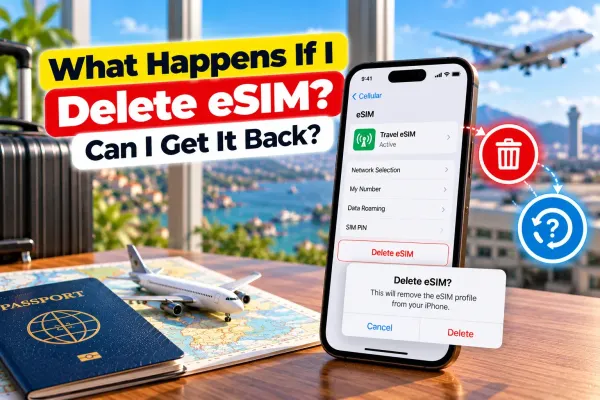
Can I remove and reinstall an eSIM on my iPhone XR?
You can remove one, but reinstalling is not guaranteed. Most QR codes are single-use, so deleting a profile often means requesting a new code from the provider. Switch a profile off rather than deleting it if you might need it again.
Will using an eSIM affect my iPhone XR's battery life?
Marginally. Running two active lines means the phone maintains two network registrations, which draws slightly more power than a single line. In practice, the difference is small. Turning off the line you are not using recovers most of it.
Can I use an international eSIM while keeping my home number active?
Yes, and this is the main reason to use one. The home number stays on the physical SIM for calls and texts while the eSIM carries data at local rates. Switch mobile data off for the physical SIM line to prevent any roaming charges from your home network.
What's the best travel eSIM for an iPhone XR?
There is no single answer. It depends on where you are going and for how long. Prioritise coverage of every country on your route, a data allowance matched to your actual usage, validity spanning the full trip, and hotspot support if you tether. Providers such as Jetpac cover 200-plus destinations on one profile, which suits multi-country trips better than buying separate plans per country.
Disclaimer
This blog is for general informational and planning purposes only. The information mentioned, including eSIM compatibility, model specifications, carrier support, roaming costs, and activation steps, is based on recent patterns and can change at any time. eSIM availability varies by carrier and region. Always verify compatibility with your carrier and confirm your device model number before purchasing an eSIM plan. Jetpac is not responsible for any inaccuracies, changes, or losses arising from reliance on this information. Always check official Apple support pages and your carrier's website before making decisions based on this content.
Get connected as soon as you land with a Jetpac travel eSIM.