Why Is My Saily eSIM Not Working? Quick Troubleshooting Guide
A Saily eSIM not working is usually caused by the wrong mobile data line, data roaming being off, missing APN settings or incomplete activation. Restart the phone, enable the Saily line, set it for mobile data, turn on roaming and check plan status before contacting support.

Most of the time, a Saily embedded SIM (eSIM) not working is caused by a phone setting, not a faulty eSIM. The three most common culprits are the wrong SIM selected for mobile data, data roaming switched off, or an incorrect access point name (APN). Each takes under a minute to fix, and in most cases your connection returns immediately afterwards.
This guide diagnoses the problem fast, then walks through every fix step by step. It covers iPhone, Samsung Galaxy, Google Pixel and other Android devices, so you can find your exact model and get back online.
Quick Troubleshooting Checklist
Find your symptom below before reading the detailed steps.
If none of these fixes work immediately, the detailed sections below cover each cause in order.
Why Is My Saily eSIM Not Working?
If you are asking "why is my Saily eSIM not working?", there are seven common causes. Working through them in order finds the problem for almost everyone.
#1. Your eSIM Isn't Activated Yet
The most common reason a Saily eSIM is not activating is that installation was never fully completed, or activation was attempted before arriving at the destination. Installing the eSIM and activating the data plan are two separate steps. Open the Saily app and confirm your plan shows as active before troubleshooting anything else.
#2. Mobile Data Is Using the Wrong SIM
If your phone has two SIMs, it may be trying to pull data from your home SIM instead of Saily. This is the single most frequent cause of a Saily eSIM data not working while showing signal. Your phone is connected, but to the wrong line.
#3. Data Roaming Is Turned Off
Saily connects through local partner networks, which counts as roaming even though you are on a travel plan. If data roaming is off for the Saily line, you get a signal but no internet. This is by far the most common fix.
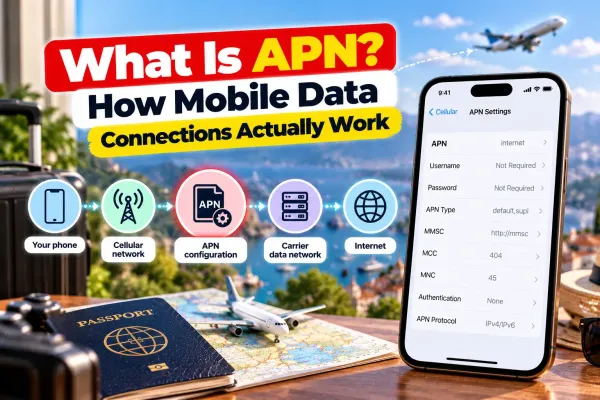
#4. APN Settings Are Missing or Incorrect
The APN tells your phone how to connect to the data network. If it is missing or wrong, the connection fails even with everything else correct. Saily usually configures this automatically, but it sometimes needs a manual entry.
#5. Your Device Isn't eSIM Compatible or Is Carrier Locked
If you see a Saily eSIM not compatible with iPhone or Android error, the phone is either not eSIM capable or locked to a carrier. A carrier-locked phone blocks third-party eSIMs until unlocked. Most phones from recent years support eSIM, but some budget and older models do not.
#6. Poor Local Network Coverage
Saily is a Mobile Virtual Network Operator (MVNO), meaning it uses partner networks rather than owning towers. In areas with weak partner coverage, you may get slow or no data even when everything is set up correctly.
#7. Your Data Plan Has Expired or Run Out
If the plan has used all its data or passed its validity window, the connection stops. Check remaining data and the expiry date in the Saily app.
How to Fix a Saily eSIM That Isn't Working
Work through these Saily eSIM troubleshooting steps in order. Most people are back online within the first four.
Step 1: Restart Your Phone
The simplest fix often works. A restart forces the modem to reload network settings and clears a stuck connection after activation. Power off fully, wait 30 seconds, power back on, and give it a full minute before checking.
Step 2: Make Sure the Saily eSIM Is Enabled
On iPhone: Settings → Mobile Service (or Cellular) → tap your Saily eSIM → ensure "Turn On This Line" is enabled.
On Android: Settings → Network and Internet → SIMs → tap your Saily eSIM → confirm the line is switched on.
Step 3: Select Saily as Your Mobile Data Line
This resolves most "connected but no internet" cases.
On iPhone: Settings → Mobile Service → Mobile Data → select your Saily eSIM.
On Android: Settings → Network and Internet → SIMs → Mobile data → select Saily.
Step 4: Turn On Data Roaming
Essential, because Saily runs on local partner networks.
On iPhone: Settings → Mobile Service → tap the Saily eSIM → toggle Data Roaming on.
On Android: Settings → Network and Internet → SIMs → tap Saily → toggle Data Roaming on.
This does not incur home-carrier roaming charges, because your home SIM is not the one connecting.
Step 5: Check Your APN Settings
If you have signal and data roaming on but still no internet, the APN may be wrong.
On iPhone: Settings → Mobile Service → tap the Saily eSIM → Mobile Data Network → enter the APN value Saily provides into the Mobile Data and LTE Setup fields.
On Android: open the Saily app and keep it open for up to 5 minutes to let the APN configure automatically. If it still fails, contact Saily support for the correct APN for your destination.
Step 6: Toggle Airplane Mode
Turn Airplane Mode on, wait 15 to 20 seconds, then turn it off. This forces the phone to re-scan for networks and often registers the eSIM immediately.
Step 7: Select the Network Automatically
If the phone is stuck on manual network selection, it may be locked to an unavailable network.
On iPhone: Settings → Mobile Service → tap the Saily eSIM → Network Selection → turn Automatic on.
On Android: Settings → Network and Internet → SIMs → tap Saily → Choose network automatically.
Step 8: Update Your Device Software
An outdated operating system can cause eSIM faults. Check for updates in Settings → General → Software Update on iPhone, or Settings → System → Software update on Android, and install anything pending.
Read more: Using Airalo instead? See Airalo eSIM not working? 8 easy fixes that work fast for common setup, APN, and mobile data solutions.
Saily eSIM Troubleshooting for Different Devices
Menu names differ slightly by manufacturer. Here is where to look on each.
Fix Saily eSIM on iPhone
Settings → Mobile Service (or Cellular). Tap the Saily line, confirm it is turned on, set it as the mobile data line, and enable Data Roaming.
For "how to activate Saily eSIM on iPhone from scratch?", install through the Saily app or scan the Quick Response (QR) code, then complete these same steps. If the APN is missing on iPhone, Saily support must supply it, as iOS does not always auto-configure it.
Fix Saily eSIM on Samsung Galaxy Phones
Settings → Connections → SIM manager. Confirm the Saily eSIM is enabled and set as the mobile data SIM. Then Settings → Connections → Mobile networks → toggle Data roaming on.
Samsung phones occasionally need Airplane Mode toggled afterwards to register.
Fix Saily eSIM on Google Pixel
Settings → Network and internet → SIMs → select Saily. Confirm the line is on, set it as mobile data, and enable roaming.
Pixel phones can have handshake issues on some networks, especially on 5G, so if data will not hold, disable 5G and select 4G or LTE instead.
Fix Saily eSIM on Other Android Devices
For how to activate Saily eSIM on Android more generally, the path is Settings → Network and Internet (or Connections) → SIMs or Mobile networks. Names vary, but you are always looking for three things: the eSIM line enabled, set as mobile data, and data roaming on.
Open the Saily app for up to 5 minutes to auto-configure the APN if data will not connect.
Read more: Thinking about moving away from a physical SIM? Follow Convert physical SIM to eSIM: Easy step-by-step guide for supported devices, setup steps and key precautions.
How Does Saily eSIM Work?
Understanding "how does Saily eSIM work?" explains most of these fixes. Saily is a travel eSIM from Nord Security, the company behind NordVPN. When you buy a plan, you install a digital eSIM profile onto your phone rather than a plastic card. That profile connects to a local partner network at your destination, which is why data roaming must be on and why local coverage matters.
Because Saily is an MVNO and does not own towers, your real-world speed depends on how strong its partner network is where you are standing. This is normal for "how does Saily eSIM work?" as a travel eSIM, not a Saily-specific fault, and it is worth knowing before you assume the eSIM itself has failed. For a fuller assessment of plans, pricing and performance beyond troubleshooting, see our separate Saily eSIM Review.
The same principle applies to activation. Knowing how to activate Saily eSIM correctly, installing the profile, then enabling the line, mobile data and roaming, prevents most of the problems in this guide before they start.
Read more: Comparing Saily with another travel eSIM? Read Jetpac vs Saily: Which travel eSIM is better? for a closer look at pricing, coverage, hotspot support and travel perks.
Still Not Working? Here's What to Do Next
If you have worked through every step and your Saily eSIM is still not working, the problem may be account-side or a provider issue.
Check Your Plan Status in the Saily App
Open the app and confirm the plan is active, has data remaining, and has not passed its validity date. An expired or depleted plan produces exactly the same "no internet" symptom as a settings fault.
Contact Saily Customer Support
Saily offers 24/7 live chat support through the app. For a Saily eSIM not activating or an APN issue that manual entry did not fix, support can confirm the problem from their side and reissue the profile if needed.
Information to Share with Support for Faster Resolution
Have these ready before you contact them:
- Device model and operating system version
- Your travel destination
- Any exact error message shown
- Screenshots of your mobile network settings
- The troubleshooting steps you have already tried
Providing all five upfront usually resolves the issue in one exchange rather than several.
Read more: Facing similar issues with another provider? Explore Holafly eSIM not working abroad? Quick troubleshooting guide for activation, roaming and connection fixes.
Looking for a More Reliable Alternative?
If your Saily eSIM keeps letting you down, or you simply want a provider with different strengths, it is worth knowing what else is available. When comparing the Best Saily Alternatives, look at destination coverage, network reliability, how easy activation is, support responsiveness, and whether essential apps keep working if your data runs low.
Why Travellers Choose Jetpac eSIM
Jetpac is one international eSIM worth comparing against Saily on the points that matter most when something goes wrong abroad.
- Coverage in 200-plus destinations on a single eSIM, useful for multi-country trips
- Fast 4G and 5G connectivity with automatic switching to the strongest local network
- Simple activation via QR code before you fly, so you land connected
- 24/7 responsive support through WhatsApp and email
- Affordable regional and global plans covering multiple countries on one profile
- Apps stay live after data runs out, so WhatsApp and Google Maps keep working even if your allowance is used up

For travellers who want the best eSIM for international travel with a genuine safety net when connectivity gets difficult, comparing a travel eSIM like Jetpac against Saily on coverage and support is a sensible step before the next trip.
Read more: Already using Jetpac but having trouble connecting? Read Jetpac eSIM not working? Common issues and fixes for quick troubleshooting steps.
FAQs
Why is my Saily eSIM connected but not working?
You have signal, but the wrong line is handling data, or data roaming is off. Set Saily as your mobile data line and turn on Data Roaming for that line. If it still fails, check the APN. This resolves the large majority of "connected but no internet" cases.
Why does my Saily eSIM show signal but no internet?
Signal means the eSIM registered on a network, but data is not routing. The usual causes are data roaming switched off, the wrong SIM set for mobile data, or an incorrect APN. Work through those three in that order.
Do I need to turn on data roaming for Saily?
Yes. Saily connects through local partner networks, which the phone treats as roaming even on a travel plan. Turning on Data Roaming for the Saily line does not trigger home-carrier charges, because your home SIM is not the connecting line.
Why isn't my Saily eSIM activating?
A Saily eSIM not activating usually means installation was not completed, activation was attempted before arrival, or the phone is carrier locked. Confirm the plan is active in the Saily app, ensure the phone is unlocked and eSIM compatible, and restart before reinstalling.
How do I reset my Saily eSIM?
Rather than deleting the eSIM, first try a network settings reset, which restores data roaming and APN to defaults, so reconfigure those afterwards. On iPhone: Settings → General → Transfer or Reset iPhone → Reset → Reset Network Settings. Avoid deleting the Saily eSIM itself unless support advises it, as reinstalling can require a new profile.
Does Saily work on iPhone and Android?
Yes, on any eSIM-compatible, carrier-unlocked device. A Saily eSIM not compatible with iPhone or Android error almost always means the phone lacks eSIM support or is carrier locked. Most iPhones from the XS and XR generation onward, and most recent Samsung, Google Pixel, and other flagship Android phones, support eSIM.
Why is my Saily eSIM slow?
Because Saily is a Mobile Virtual Network Operator using partner networks, speed depends on the local network where you are. Try switching from 5G to 4G or LTE, move to an area with better coverage, or restart the phone. Slow speeds are usually a local network limitation rather than a Saily fault.
Can I reinstall my Saily eSIM?
Sometimes, but not always, as many eSIM profiles are single-use once installed. Before deleting anything, contact Saily support, since removing the profile may require them to issue a new QR code. Switch the line off rather than deleting it if you only need to pause it.
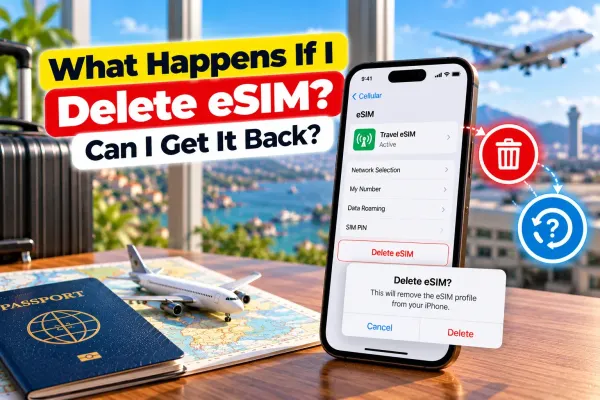
What happens if I accidentally delete my Saily eSIM?
Deleting the profile removes it from your phone, and you cannot usually reinstall the same one from the original QR code. Contact Saily support to have the eSIM reissued. This is why switching a line off is safer than deleting it if you may need it again.
When should I contact Saily support?
After working through activation, mobile data selection, data roaming, APN, and a restart. If none of those restore data, or your Saily eSIM data not working persists despite an active plan, support can check the account side and reissue the profile. Have your device model, destination, and any error message ready.
Disclaimer
This blog is for general informational and planning purposes only. The troubleshooting steps, menu paths, settings names, and provider details described here are based on recent patterns and can change at any time with software updates or provider changes. Menu names and steps vary by device model and operating system version. Always follow the official in-app guidance from your eSIM provider and refer to Saily's own help centre for the most current instructions. Jetpac is not responsible for any inaccuracies, changes, or losses arising from reliance on this information. Always confirm current settings and support options directly with your provider before making decisions based on this content.
Get connected as soon as you land with a Jetpac travel eSIM.