
Apple Watch eSIM: Activation, Setup & Management Guide
Apple Watch eSIM is built into every GPS + Cellular model and shares your iPhone number through your carrier for USD 5 to 15 per month. Setup takes minutes through the Watch app. For travel, pair your Watch with an iPhone running a travel eSIM for the most practical international setup.
Apple Watch eSIM sounds simple on the surface. It lets your watch make calls, send messages, and use data even when your iPhone is not nearby. But once you start looking into activation, roaming, or travel use, the details matter more than most people expect.
Cellular Apple Watch models rely on carrier-provisioned eSIM profiles. The watch automatically switches between Bluetooth to your iPhone, known Wi-Fi networks, and cellular to preserve battery life. That design works well, but it also means activation depends on carrier eligibility, plan type, and even the region your watch was purchased in.
If you are trying to understand how to activate eSIM on Apple Watch, whether Apple Watch has a SIM card, or how eSIM in Apple Watch works when traveling internationally, this guide walks through the setup, limitations, and real-world constraints clearly and without assumptions.
Does Apple Watch Need eSIM?
If you have a GPS-only model, there is no cellular radio inside the watch. That means no independent mobile data, no standalone calls, and no Apple Watch eSIM plan required. Your watch connects through Bluetooth to your iPhone or through known Wi-Fi networks.
If you have a GPS + Cellular model, then yes, it relies on an eSIM for Apple Watch. There is no physical SIM slot. The cellular identity is delivered digitally by your carrier through an embedded SIM chip.
This answers the common question, “Does Apple Watch have a SIM card?” Technically, yes, but it is embedded and cannot be removed. There is no tray and nothing to swap.
What does the eSIM in the Apple Watch actually enable?
With an active Apple Watch eSIM plan, your watch can:
- Make and receive calls even when your iPhone is not nearby
- Send and receive iMessages and SMS
- Use data for apps like Maps, Apple Music streaming, Siri, and third-party apps
- Receive notifications independently
- Make emergency calls in supported regions
That said, “independent” does not mean “fully separate device.”
For example:
- Some SMS/MMS and certain third-party push notifications still require your paired iPhone to be powered on and connected to the internet somewhere.
- App installation and management still happen through the paired iPhone.
- Battery life drops faster when the watch stays on cellular for long stretches instead of Bluetooth.
So while the eSIM in Apple Watch gives you meaningful freedom from your phone, it works best as a companion device with cellular backup, not as a total phone replacement.
What is eSIM in the Apple Watch?
The eSIM in Apple Watch is not a separate SIM card you manage manually. It is a carrier-assigned digital profile that lives inside the watch’s hardware and is activated through your iPhone during setup.
Unlike phones, where you can independently install and switch between multiple eSIM profiles, Apple Watch cellular operates as an extension of your iPhone’s mobile line in standard configurations. The watch mirrors your primary number through your carrier’s number-sharing system. That is why activation happens inside the Watch app rather than through QR code scanning.
Operationally, this means:
- The watch does not behave like an unlocked phone that can freely load third-party travel eSIM profiles.
- Cellular service is tied to an eligible phone line.
- Billing and plan management remain within your carrier account.
Apple does allow storing multiple plans in certain dual-SIM environments, but only one can be active at a time, and switching depends on carrier support.
The important distinction is this: eSIM for Apple Watch is carrier-integrated, not carrier-agnostic. That structural difference explains most setup limitations people encounter.
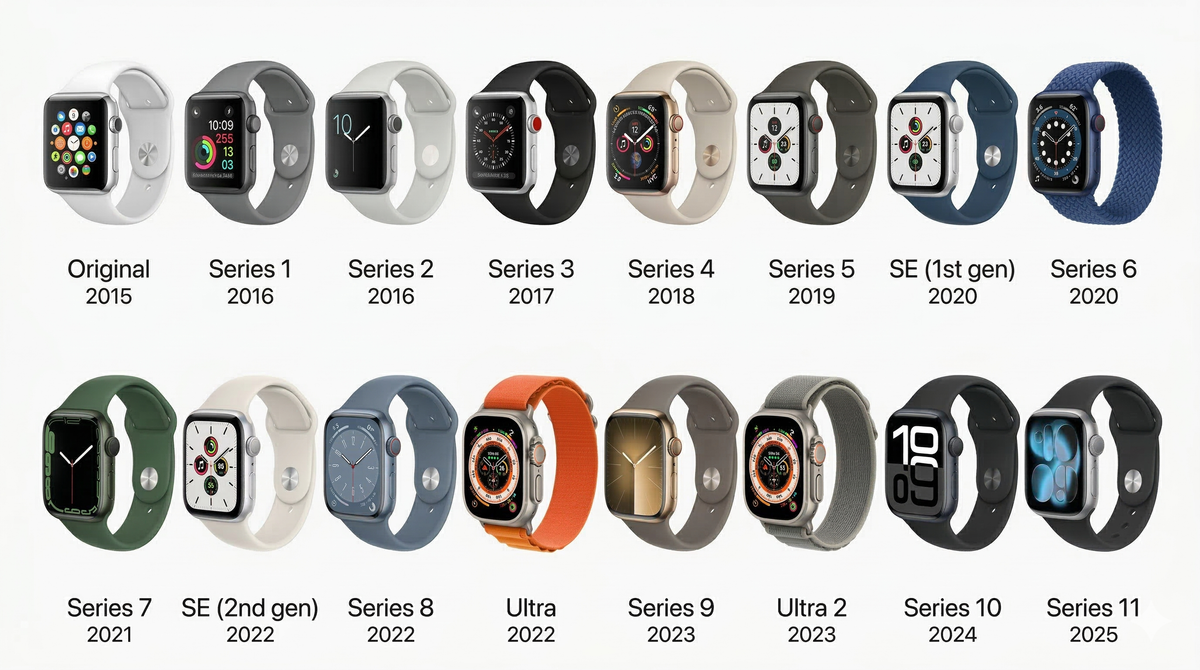
Which Apple Watch Models Support eSIM?
Not every Apple Watch supports cellular. Only models labeled GPS + Cellular include the hardware required for an Apple Watch eSIM plan.
Here is the clean breakdown:
Two clarifications matter here:
- Cellular support is tied to the specific variant you purchased. A Series 9 GPS model does not support eSIM in the Apple Watch at all. The Series 9 GPS + Cellular does.
- Apple Watch cellular models are region-optimized. There is no single worldwide Apple Watch cellular model. Devices are manufactured with different LTE and 5G band configurations depending on the country or region of sale. That means a watch purchased in the United States may not support the same network bands as a version sold in Europe or Asia. Even if the hardware supports eSIM, activation and roaming depend on band compatibility and carrier agreements in the country you are using it.
One more practical note most buyers miss: newer models (Series 11 and Ultra 3) support 5G where carriers enable it, but 5G on Apple Watch prioritizes efficiency over speed. It is not equivalent to smartphone 5G performance.
The word “Cellular” must appear in the product description.
How to Activate eSIM on Apple Watch
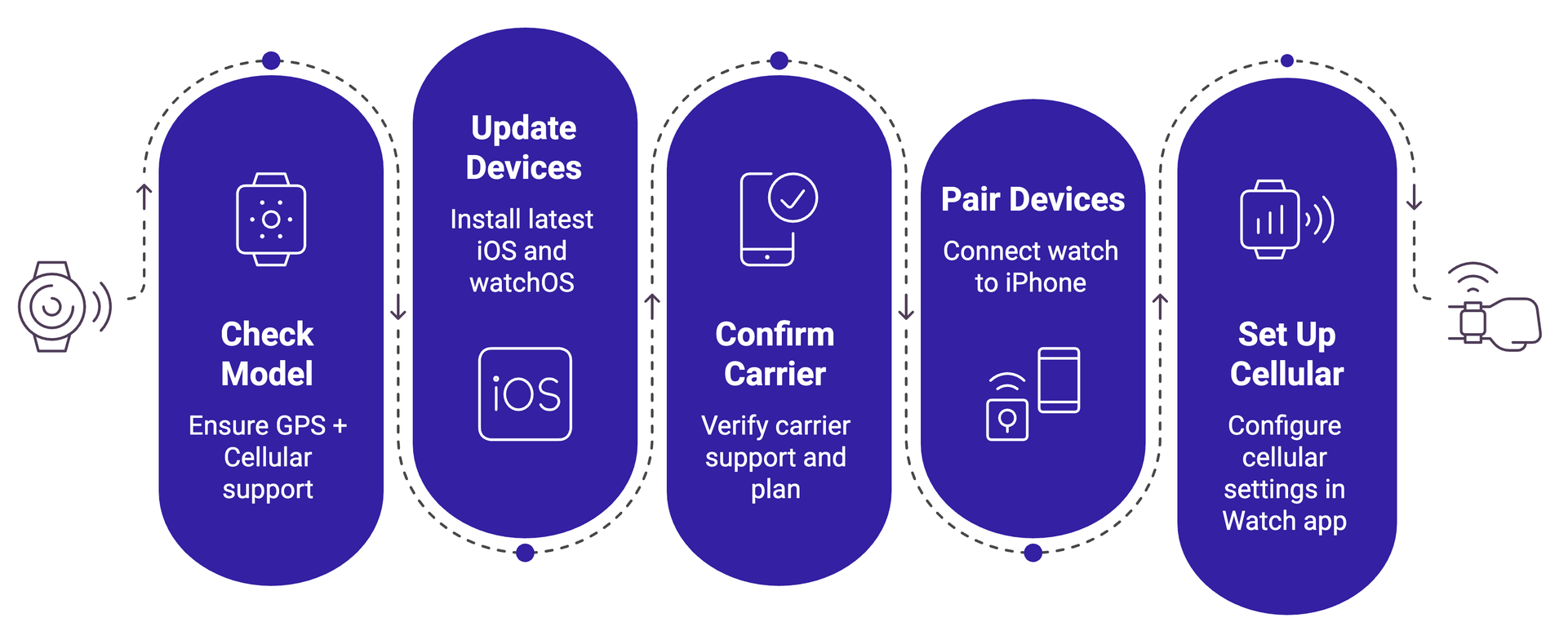
Activating an Apple Watch eSIM is done entirely through the paired iPhone. There is no QR code scan and no manual SIM input. If the “Set Up Cellular” option does not appear, that is almost always a hardware, carrier, or account eligibility issue rather than a technical failure.
Below is the correct activation flow, along with the real-world blockers most people encounter.
Step 1: Confirm You Have a Cellular Model
Before anything else, confirm the watch is GPS + Cellular.
If “Cellular” does not appear in the model name, you cannot activate eSIM in Apple Watch because the hardware simply is not present.
Hidden issue to watch for:
Some retailers sell GPS-only models at lower prices that look identical externally. The difference is internal.
Step 2: Update iPhone and Apple Watch
Install the latest:
- iOS on your iPhone
- watchOS on your Apple Watch
Carrier settings updates also matter.
If a carrier update is available, install it.
Why this matters:
Carrier provisioning often fails silently if the device is not on the latest supported firmware.
Step 3: Confirm Carrier and Plan Eligibility
This is where most activation attempts fail.
You must confirm:
- Your carrier supports Apple Watch cellular
- Your specific plan type is eligible
- Your account is not restricted (enterprise or certain prepaid plans)
4 Common hidden blockers:
- Corporate accounts that disallow smartwatch add-ons
- Older legacy plans are not provisioned for Number Share
- Prepaid plans that support phone eSIM but not Apple Watch eSIM
- Ported numbers still mid-transition
If your carrier login inside the Watch app rejects activation, it is almost always an account type issue, not a device issue.
Step 4: Pair the Watch With iPhone
Standard activation requires a paired iPhone.
Open the Watch app on your iPhone and complete pairing first.
Important clarification:
Can you activate eSIM on an Apple Watch without an iPhone?
No. Even in Family Setup mode, an organizer’s iPhone is required for initial provisioning. There is no standalone direct watch activation path.
Step 5: Add the Apple Watch eSIM Plan
You will be redirected to your carrier’s login page.
During this step:
- You may be presented with pricing
- You may need to accept the terms
- A monthly Apple Watch eSIM plan will be added to your account
Activation typically completes within a few minutes, but in some regions it can take up to 30 minutes to fully provision.
If you do not see “Set Up Cellular”:
- You likely have a GPS-only model
- Or your carrier does not support Apple Watch
- Or you are outside your carrier’s coverage region during setup
Some carriers require activation while connected to their domestic network, not roaming internationally.
Step 6: Verify Cellular Connectivity
After activation:
👉 Open Control Center on Apple Watch
👉 Check for the cellular indicator
To test properly:
- Turn off Bluetooth on iPhone
- Or power off the iPhone entirely
- Attempt a call or open a data app
If the call works, your Apple Watch eSIM is fully active.
Battery reminder:
When the watch uses cellular instead of Bluetooth, the battery drains faster. This is expected behavior.
Plan Transfers and Watch Upgrades
If you upgrade your Apple Watch:
- Remove the cellular plan from the old watch first
- Then pair the new watch
- Add cellular again during setup
Some carriers support automated transfer. Others require manual removal and reactivation.
If you change carriers entirely:
You must remove the old Apple Watch eSIM plan and enroll in a new Apple Watch eSIM plan with the new carrier.
Number portability for watches is carrier-controlled, not device-controlled.
Regional Activation Constraints
Even if your model supports eSIM for Apple Watch:
- Activation requires carrier support in your country of use
- Cross-border activation is not always supported
- Some carriers restrict activation while roaming internationally
- Regional hardware models may lack LTE bands used in other countries
This is particularly relevant for travelers who purchased their watch in one region and attempt activation in another.
There is no universal Apple Watch cellular model that guarantees activation everywhere.
Can You Use an Apple Watch Without an iPhone?
Yes, but what that actually means depends on how you’re using it.
There are two completely different scenarios:
- You are temporarily away from your iPhone
- The watch user does not have an iPhone at all
These are not the same.
Using Apple Watch Away From Your iPhone
If you have a GPS + Cellular model with an active Apple Watch eSIM plan, your watch can function independently when your iPhone is not nearby.
When separated from your phone, the watch connects in this priority order:
- Bluetooth to your iPhone
- Known Wi-Fi networks
- Cellular (if available)
When on cellular, you can:
- Make and receive calls
- Send and receive iMessages
- Use Maps
- Stream music
- Use Siri
- Receive most notifications
However, independence is partial.
Important limitation:
To receive SMS/MMS messages and certain third-party push notifications, your paired iPhone must still be powered on and connected to Wi-Fi or cellular service somewhere. It does not need to be nearby, but it cannot be off.
This catches many people off guard.
Low Power Mode Behavior
If Low Power Mode is enabled and your iPhone is not nearby, the watch may disable cellular and Wi-Fi until you manually open an app that requires data.
This is designed to preserve battery, not indicate a network failure.
Extended cellular usage will drain the battery faster than Bluetooth mode. That is normal behavior.
Using Apple Watch Without Owning an iPhone (Family Setup)
Apple Watch For Your Kids, commonly called Family Setup, allows a cellular Apple Watch to be set up for someone who does not have their own iPhone.
Requirements include:
- GPS + Cellular watch (Series 4 or newer, or SE Cellular)
- Organizer’s iPhone for setup
- Supported carrier
In this mode, the watch can:
- Make calls
- Send messages
- Use apps independently
But there are important restrictions:
- International roaming is not supported
- Some advanced features are limited
- Certain apps behave differently
- Set up and management still require an organizer’s iPhone
Family Setup is not a substitute for a fully independent device. It is a managed configuration.
International Travel Considerations
If you are asking how to use an Apple Watch when traveling internationally, there are additional conditions.
International roaming for Apple Watch requires:
- watchOS 9.1 or later
- Supported models (Series 5+, SE+, Ultra+)
- Carrier support for Apple Watch roaming
- Data Roaming enabled in Settings
Even then:
- Roaming works only in countries supported by your carrier
- Regional hardware compatibility still matters
- Family Setup watches do not support international roaming
This is where many people assume they can install a travel eSIM and bypass roaming.
In most cases, you cannot.
Apple Watch cellular provisioning is carrier-controlled. Most travel eSIM providers are built for phones and do not support direct Apple Watch activation.
For international travel, the cleanest path is usually:
- Confirm roaming support with your carrier
- Enable Data Roaming on the watch
- Or rely on Wi-Fi + iPhone roaming instead
Best eSIM Plans for Apple Watch
Unlike smartphones, the Apple Watch does not operate as an open eSIM marketplace device. You cannot usually purchase a generic travel eSIM and install it directly onto the watch. The Apple Watch eSIM plan must be provisioned through a supported carrier that integrates with Apple’s cellular framework.
In practice, Apple Watch cellular plans fall into two categories:
- Number-sharing add-ons
- Family Setup standalone lines
Both are managed through your mobile carrier, not a third-party QR activation.
1. Standard Number-Sharing Plans (Most Common)
This is how most users activate eSIM for Apple Watch.
Your watch shares your iPhone’s number through your carrier’s “Number Share” system. The watch acts as an extension of your main line rather than a separate subscription.
Typical U.S. pricing ranges:
- USD 10 per month (budget carriers)
- USD 10 to 15 per month (major carriers)
- Discounts may apply if bundled with premium phone plans
Examples in the U.S. market include:
- Verizon smartwatch plans
- AT&T smartwatch add-on lines
- T-Mobile Watch plans
- Visible smartwatch add-ons
- Xfinity Mobile smartwatch lines
Eligibility depends on:
- Your base phone plan
- Account type (prepaid vs postpaid)
- Carrier support for the Apple Watch specifically
This is the simplest and most stable configuration.
2. Family Setup Standalone Plans
Family Setup allows a cellular Apple Watch to function with its own number for someone who does not own an iPhone.
These plans:
- Are managed through an organizer’s iPhone
- Have feature limitations
- Do not support international roaming
- Are supported only by certain carriers
Specialist providers such as BetterRoaming appear on Apple’s carrier list for Family Setup support in some regions.
This is the only scenario where the watch behaves closer to an independent line — but even then, activation and management remain iPhone-controlled.
What About Travel eSIM for Apple Watch?
This is where expectations need adjustment.
Most travel eSIM providers design products for phones, tablets, and laptops. Apple Watch eSIM activation is not based on scanning QR codes like a typical travel eSIM.
If you are traveling internationally and wondering whether a travel eSIM can be installed directly on an Apple Watch, the answer in most cases is no.
Apple Watch cellular provisioning requires:
- Carrier integration
- Account eligibility
- Supported roaming agreements
For international travel, your options are usually:
- Enable roaming on your existing Apple Watch eSIM plan
- Confirm your carrier supports Apple Watch roaming in your destination
- Use your iPhone with a travel eSIM and allow the watch to connect through Bluetooth
The third option is often the most reliable for eSIM for international travel scenarios.
Which Type of Plan Is Best?
The best Apple Watch eSIM plan is usually:
- The one tied to your existing carrier
- On the same carrier as your iPhone
- With confirmed roaming support if traveling
Trying to mix carriers between phone and watch creates activation friction and provisioning errors in many cases.
If your use case is:
👉 Frequent workouts without your phone → A standard carrier add-on makes sense.
👉 Occasional standalone use → Evaluate cost vs battery trade-offs.
👉 International travel → Verify roaming first before assuming watch-only connectivity.
Using Apple Watch with a Travel eSIM
If you are traveling internationally and using a travel eSIM on your iPhone, your Apple Watch continues to function normally through Bluetooth, even if the watch does not have an active roaming plan.
In practice, this means:
- Install a travel eSIM on your iPhone before departure
- Keep your Apple Watch paired
- Let the watch connect through your iPhone’s data connection
Jetpac’s travel eSIM activates before departure and works across 200+ destinations, keeping your iPhone online the moment you land. Since Apple Watch relies heavily on the iPhone for many services, this setup often provides a more stable international experience than trying to rely on watch-only roaming.
Key points:
- No SIM swaps
- No carrier roaming bill shock
- Essential apps (Google maps, WhatsApp, Uber and Grab) remain accessible even if your main data allowance runs out
- 24/7 support if connectivity issues arise
- Prepaid pricing is often up to 70% cheaper than traditional roaming
This approach keeps your Apple Watch usable abroad without depending on limited Apple Watch international roaming support.
FAQs
Is Apple Watch eSIM free?
No. A cellular Apple Watch requires a separate monthly add-on plan through your carrier. In most regions, including the United States, this typically costs between USD 10 and 15 per month, depending on your carrier and phone plan.
Can I use the same eSIM on my iPhone and Apple Watch?
Not in the way people usually mean. The Apple Watch does not reuse the physical or digital SIM from your iPhone. Instead, it uses its own eSIM profile provisioned by your carrier, typically linked to your iPhone number through a number-sharing system. It is not a transferable eSIM profile like on a phone.
How much does an eSIM for an Apple Watch cost?
The cost depends on your carrier. Most major U.S. carriers charge around USD 10 to 15 per month for an Apple Watch eSIM plan. Discounts may apply when bundled with premium phone plans or autopay programs.
Can the Apple Watch have its own number?
Yes, but it depends on the configuration. In standard pairing mode, the watch shares your iPhone number. In Family Setup mode, the watch can have its own dedicated number managed through an organizer’s iPhone. However, Family Setup has feature limitations and does not support international roaming.
Can Apple Watch support eSIM?
Yes, but only GPS + Cellular models support eSIM. GPS-only models do not include cellular hardware and cannot activate an Apple Watch eSIM plan.
Can kids use an eSIM Apple Watch?
Yes, through Apple Watch For Your Kids (Family Setup). A cellular-capable Apple Watch can be set up for a child using an organizer’s iPhone. The child can make calls and send messages independently, but some features are restricted and international roaming is not supported in this mode.
How do I get an eSIM for my Apple Watch?
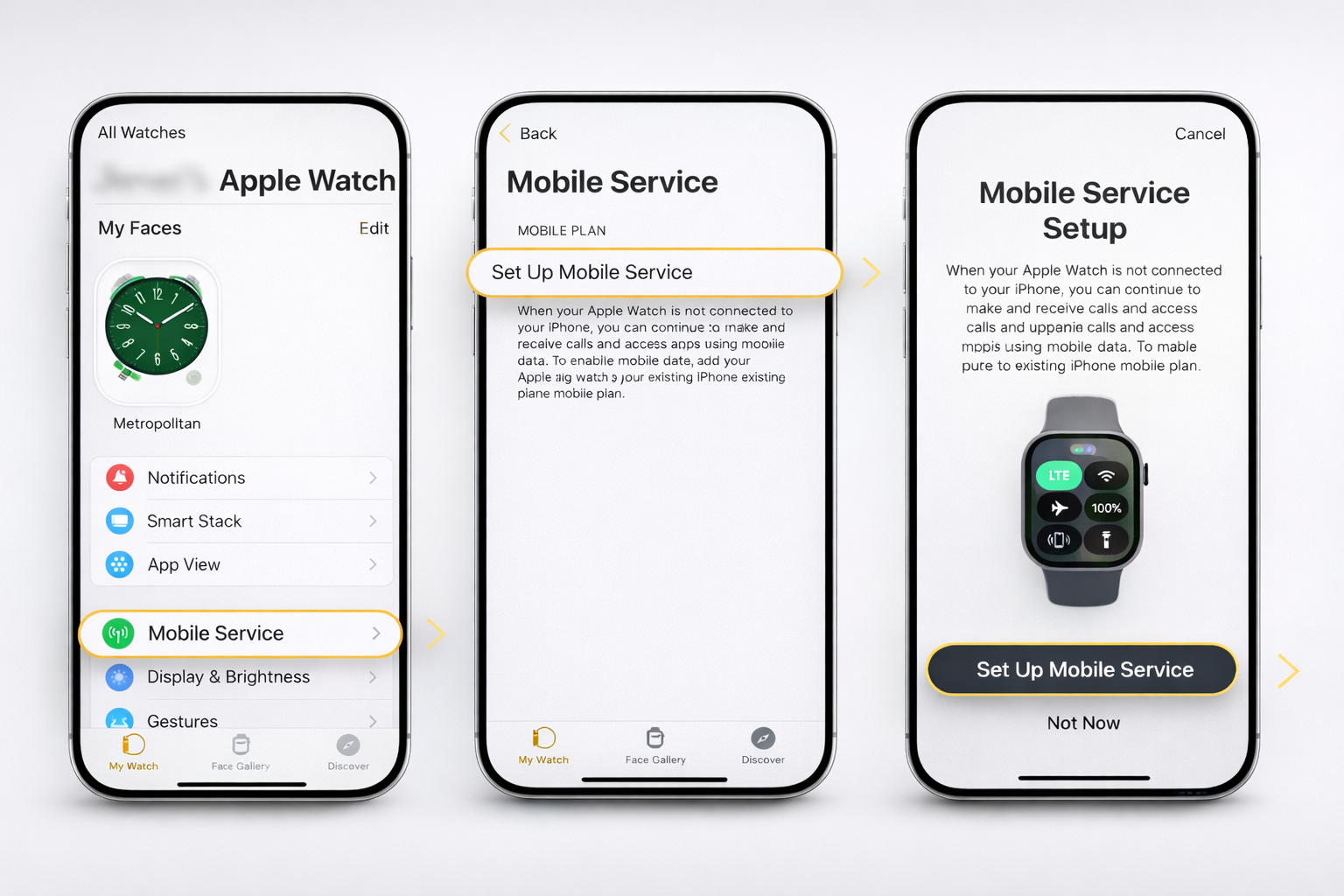
You activate it through your carrier using the Watch app on your iPhone. Open Watch app → My Watch → Cellular → Set Up Cellular and follow your carrier’s instructions. You must have a GPS + Cellular model and an eligible phone plan. Activation cannot be done directly on the watch without an iPhone.
Disclaimer
The information in this blog is based on publicly available sources and documentation from Apple’s official website at the time of writing. Costs, Apple Watch specifications, watchOS features, eSIM functionality, and roaming support may change due to software updates, regional regulations, or carrier policy changes. Feature availability can vary by device model, watchOS version, country, and mobile carrier.
Always verify your specific device compatibility, plan eligibility, and international roaming support directly with Apple and your carrier before activation or travel. Jetpac is not responsible for third-party carrier restrictions, regional limitations, or changes in Apple software or hardware policies.