Is iPhone 17 eSIM Only? Compatibility & Setup Guide
Yes, all iPhone 17 models support eSIM. The US model is eSIM-only with no physical SIM slot. The iPhone 17 Air is eSIM-only globally. All models store 8+ profiles and run two active lines simultaneously.
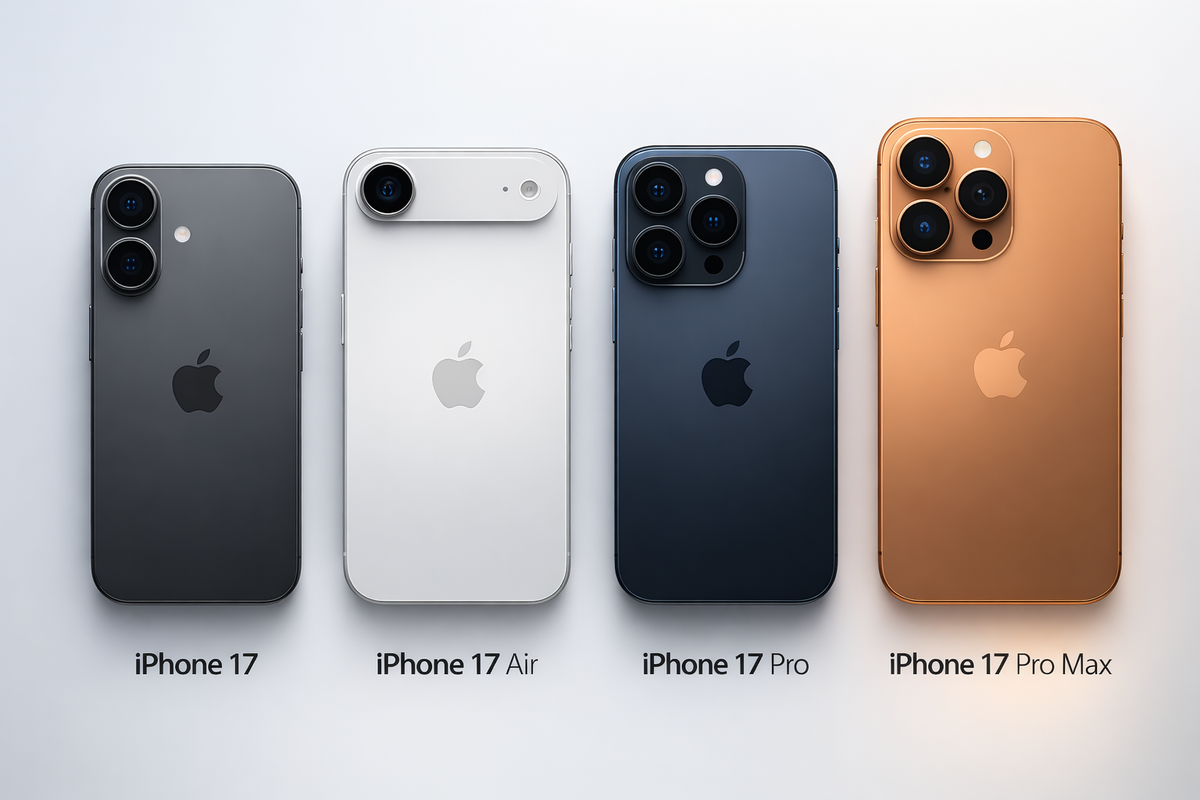
All iPhone 17 models support eSIM. In the US and 11 other countries, the standard, Pro, and Pro Max are eSIM-only with no physical SIM slot. The iPhone 17 Air goes further, dropping the physical tray in every market globally. Two lines can run simultaneously across all models, with eight or more profiles stored on the device.
This blog covers everything a new iPhone 17 owner or upgrader needs: what eSIM-only means in practice, which regional model you have, how to activate and transfer plans, how dual eSIM works day to day, and how to use a travel eSIM on iPhone 17 for international trips without roaming charges or SIM card handling at any point.

What is eSIM, and How Does It Work on iPhone 17?
An eSIM, short for embedded SIM, is a programmable chip soldered directly into your iPhone during manufacturing. There is no physical card to insert, lose, or damage. Instead of visiting a carrier store to pick up a nano-SIM, you install a carrier plan digitally by scanning a QR code, using your carrier's app, or transferring from a previous iPhone.
Apple first introduced eSIM on iPhone with the iPhone XS in 2018 as a secondary option alongside a physical SIM tray. With the iPhone 14 in 2022, Apple made US models entirely eSIM-only. The iPhone 17 extends that shift to 11 additional countries and introduces the iPhone 17 Air, Apple's first globally eSIM-only iPhone.
The practical difference from a physical SIM comes down to three major things:
Why is Apple Moving Toward eSIM-only Globally?
Apple is moving toward eSIM-only for four clear reasons:
Is iPhone 17 eSIM Only?
A Complete Regional Breakdown
Whether your iPhone 17 is eSIM-only depends entirely on which regional model you have and where it was purchased.
1) iPhone 17 eSIM in the US 🇺🇸
The US model is fully eSIM-only. No physical SIM tray exists on any iPhone 17 variant sold in the United States. This applies to the standard iPhone 17, iPhone 17 Pro eSIM only, and iPhone 17 Pro Max eSIM support configurations equally. All three store multiple eSIM profiles and support two active simultaneously. Major US carriers, including AT&T, Verizon, T-Mobile, and most MVNOs, support full eSIM activation.
2) iPhone 17 eSIM in Europe 🇪🇺
European models of the iPhone 17, iPhone 17 Pro, and iPhone 17 Pro Max retain one physical nano-SIM tray alongside eSIM support.
This is a hybrid configuration: you can use one physical nano-SIM and one eSIM simultaneously, or two eSIMs if you prefer the fully digital approach. The iPhone 17 Air sold in Europe is eSIM-only with no nano-SIM tray, consistent with its global configuration.
3) iPhone 17 eSIM in Asia 🌏
Most Asian markets outside the confirmed eSIM-only list receive the hybrid model with one nano-SIM tray plus eSIM support. South Korea, Singapore, Australia, and New Zealand receive the hybrid international model. India and most of Southeast Asia similarly receive nano-SIM plus eSIM configurations.
4) China 🇨🇳 and the Physical SIM Exception
Mainland China models of the iPhone 17, iPhone 17 Pro, and iPhone 17 Pro Max support nano-SIM cards only, with no eSIM capability at all. This reflects the Chinese regulatory environment, where consumer eSIM has not received full approval for standard devices.
The iPhone 17 Air is the single exception. It is eSIM-only worldwide, including mainland China, where activation is handled through China Unicom. Travel eSIMs on the iPhone 17 Air must be installed before entering mainland China, as installing new eSIM profiles from within the country is restricted.
iPhone 17 eSIM Compatibility Table
All models support 2 active eSIM lines simultaneously and store 8 or more profiles.
*eSIM-only countries for iPhone 17, 17 Pro, and 17 Pro Max: United States, Canada, Japan, Mexico, Bahrain, Kuwait, Oman, Qatar, Saudi Arabia, United Arab Emirates, Guam, and the US Virgin Islands. In all other markets, these models include one physical nano-SIM slot alongside eSIM support.
How to Check If Your iPhone 17 Supports eSIM: 3 Quick Methods
How can I check if my iPhone 17 supports eSIMs? Here are three methods:
Method 1: Settings check
If this option appears, your iPhone 17 supports eSIM installation. If it does not appear, your model or carrier configuration may not support it.
Method 2: Dial Code
Dial *#06# on your iPhone 17.
If an EID number appears alongside your IMEI, your device supports eSIM. The EID is the unique identifier for your embedded SIM chip.
Method 3: About Screen
If you see an EID listed, eSIM is supported. If you see a MEID or IMEI only with no EID, the device does not support eSIM.
How to Set Up eSIM on iPhone 17: Step-by-Step
How to activate eSIM on iPhone 17 follows three methods depending on your situation.
Method 1: QR Code Activation
- Obtain a QR code from your carrier or travel eSIM provider, either printed, emailed, or displayed in their app.
- Open Settings on your iPhone 17 and tap Cellular.
- Tap Add Cellular Plan.
- Point your camera at the QR code. iPhone reads it automatically.
- Tap Continue and follow on-screen prompts to confirm.
- Label the plan clearly: Personal, Work, or Travel.
- Choose whether this line handles cellular data, calls, and messages by default.
Activation typically completes within one to three minutes. Some carriers take up to 24 hours to fully provision.
Method 1: Carrier App
- Download your carrier's official app.
- Log in to your account.
- Navigate to SIM management or device settings.
- Select Add eSIM or Activate eSIM.
- The profile installs automatically without a QR code.
Method 1: Manual Entry
If your QR code is unreadable or unavailable:
- Open Settings, Cellular, Add Cellular Plan.
- Tap Enter Details Manually at the bottom of the screen.
- Enter the SM-DP+ address and activation code provided by your carrier.
- Tap Next and follow prompts to complete activation.
How to Transfer eSIM to iPhone 17?
1) Transfer from an iPhone 16 or Earlier iPhone
This is the fastest method for users upgrading.
- Keep your previous iPhone nearby and powered on during iPhone 17 setup.
- When prompted during setup, select Transfer from iPhone.
- Bring both devices close together.
- Follow the on-screen instructions on both phones.
- Your carrier plan transfers digitally in minutes without contacting your carrier directly.
2) Transfer from a Physical SIM
If your current device uses a physical SIM and you are moving to iPhone 17:
- Contact your carrier by phone, through their app, or in-store.
- Request a SIM to eSIM conversion.
- Verify your identity through your account PIN or ID.
- Receive an activation QR code or push from your carrier.
- Follow the QR code method above to install.
- Your physical SIM deactivates once the eSIM is confirmed active. Keep it as a backup until you have tested calls and data.
What to Do If eSIM Transfer Fails?
If your eSIM transfer does not complete:
- Confirm your iPhone is unlocked. A carrier-locked device will not accept profiles from other carriers.
- Verify your iOS version is current. Outdated software causes activation failures more often than hardware issues.
- Check your carrier account is in good standing with no outstanding balance blocks.
- Contact your carrier directly with your EID number (found in Settings, General, About) for manual provisioning.
Dual eSIM on iPhone 17 Explained
How Many eSIMs Can iPhone 17 Have?
The iPhone 17, iPhone 17 Pro, iPhone 17 Pro Max, and iPhone 17 Air all store 8 or more eSIM profiles simultaneously, with 2 active at any time.
On eSIM-only models, both active lines are eSIM profiles. On hybrid models sold in Europe and most international markets, one active line can be a physical nano-SIM and one an eSIM, or both can be eSIM profiles, depending on your preference.
How to Switch Between eSIM Lines?
Go to Settings, Cellular, and tap the line you want to manage. You can set any stored eSIM as your default for cellular data, calls, or messages independently. Switching your active data line from your home carrier to a travel eSIM takes under ten seconds from Settings.
Using One Line for Travel and One for Home
The most practical dual eSIM setup for travelers: keep your home carrier eSIM active for calls, texts, and iMessage. Add a travel eSIM as your second active line and set it as the default for cellular data when you arrive in your destination country. To Prevent Roaming on iPhone, Turn off data roaming on your home line to eliminate any possibility of roaming charges accumulating in the background.
iPhone 17 eSIM vs Physical SIM: Which Is Better?
For travelers, remote workers, and dual-number users, eSIM wins on every practical metric. For users in markets with limited eSIM carrier support or travelers visiting remote regions where local carriers may not offer eSIM plans, a physical SIM backup option retains value.
7 Common iPhone 17 eSIM Problems and How to Fix Them
Problem 1: eSIM Not Activating
Update iOS first:
The second most common cause is a carrier-locked device. Check:
If it shows a carrier name rather than No SIM Restrictions, contact your carrier to unlock before installing any eSIM.
Problem 2: No Signal After Activation
Go to:
Wait 30 seconds per selection before testing. Also, confirm Data Roaming is on:
Toggle Airplane Mode on and off to force a fresh network registration.
Problem 3: Cannot Transfer eSIM
Both phones must be on the same Apple ID and within Bluetooth range during transfer. If it fails, request a new QR code from your carrier through their app or website and use the QR code method instead. Most carriers issue a replacement code instantly without a store visit.
Problem 4: eSIM Removed by Mistake
Contact your carrier immediately. Most carriers reissue the eSIM digitally without a new physical card. Have your account credentials and your iPhone 17 EID ready. Find your EID at:
It does not change regardless of which eSIM profiles are installed.
Problem 5: Add eSIM Option Not Showing
This usually means either your regional iPhone 17 model does not support eSIM, your iOS version is outdated, or your carrier has not enabled eSIM on your account. Update iOS first. If the option still does not appear, confirm with your carrier that your plan is eSIM-eligible.
Problem 6: eSIM Disappeared After iOS Update
An iOS update occasionally causes an installed eSIM profile to stop appearing. Check:
If the plan is still listed but inactive, reactivate it. If it is gone entirely, reinstall using your original QR code or activation method. Contact your carrier for a replacement code if the original has expired.
Problem 7: Expired or Already Used QR Code
Each eSIM QR code is single-use. If activation fails with an error message, your QR code may have already been scanned or has expired. Contact your carrier or eSIM provider for a new code. This is one of the most common first-time activation failures and resolves immediately with a fresh QR code issued through the carrier app or website.
Best eSIM Plans for iPhone 17: What to Look For
Not all travel eSIM plans are built the same. When choosing one for iPhone 17, focus on reliability, flexibility, and transparency.
Who Should Use eSIM on iPhone 17?
Frequent travelers
The clearest use case. Installing a travel eSIM before departure means you land with working data and avoid airport SIM kiosks or expensive roaming charges. Dual eSIM allows you to keep your home number active for calls while the travel eSIM handles data abroad.
Remote workers
Two active lines on one device allow you to separate personal and work numbers without carrying a second phone. Line labels in Settings help keep calls, messages, and data organized for the right context.
Dual number users
Anyone maintaining a home-country number while living or working in another country benefits from storing both lines on one device and switching the active data line based on location.
Business travelers
Frequent short international trips are easier with a stored travel eSIM that can be reactivated in seconds from Settings, rather than purchasing a new physical SIM for every destination.
FAQs
How many eSIMs can the iPhone 17 Pro Max have?
The iPhone 17 Pro Max stores 8 or more eSIM profiles simultaneously and supports 2 active lines at the same time. On eSIM-only models, both active lines are digital. On hybrid models sold in Europe and international markets, one active line can be a physical nano-SIM and one an eSIM.
Are all iPhone 17 models eSIM only?
Not globally. The iPhone 17 Air is eSIM-only worldwide. The iPhone 17, iPhone 17 Pro, and iPhone 17 Pro Max are eSIM-only in 12 countries, including the US, Canada, Japan, and Mexico. In Europe and most other international markets, these three models retain a nano-SIM tray alongside eSIM support. Mainland China models are nano-SIM only, with no eSIM.
Does iPhone 17 have dual eSIM?
Yes. All iPhone 17 models support dual SIM with two lines active simultaneously. On eSIM-only models, both lines are eSIM profiles. In hybrid international models, one line can be a physical nano-SIM and the other an eSIM. You can store 8 or more eSIM profiles on the device and switch between them in Settings.
How many eSIMs can the iPhone 17 Air have?
The iPhone 17 Air stores 8 or more eSIM profiles and supports 2 active simultaneously. It is eSIM-only worldwide with no physical SIM slot in any regional version, including mainland China. It is Apple's first globally eSIM-only iPhone model.
How many eSIMs can the iPhone 17 Pro have?
The iPhone 17 Pro stores 8 or more eSIM profiles simultaneously, with 2 active at any time. In the US and 11 other confirmed markets, the iPhone 17 Pro eSIM-only configuration has no physical SIM tray. In Europe and most international markets, one nano-SIM plus one eSIM can be active together.
Does the iPhone 17 have a SIM slot?
In the US and 11 other confirmed markets, no. Does iPhone 17 have a SIM card slot in its American version? No physical tray exists. In Europe, Australia, South Korea, and most international markets, yes, one nano-SIM slot is present alongside eSIM support. The iPhone 17 Air has no SIM slot in any market globally.
Can you put 2 eSIMs on an iPhone 17?
Yes. Two eSIM profiles can be active simultaneously on any iPhone 17 model. You can store up to 8 inactive profiles beyond these two active lines and switch between them in Settings without deleting and reinstalling plans.
How to transfer eSIM from old iPhone to iPhone 17?
During initial iPhone 17 setup, select Transfer from iPhone when prompted and keep your previous device nearby. iOS transfers your carrier eSIM digitally between devices within minutes without contacting your carrier. Alternatively, contact your carrier through their app to request a new eSIM QR code for the iPhone 17 if you prefer to set it up manually.
Do eSIMs drain battery faster?
No. eSIM technology does not consume more power than a physical SIM card. In fact, eSIM-only iPhone 17 models carry a larger battery than their physical SIM counterparts because the space formerly occupied by the SIM card tray is now used for additional battery capacity. Apple confirmed this in their September 2025 product announcement.
Disclaimer
Device specifications, regional model availability, carrier eSIM support details, and iOS features referenced in this blog are based on publicly available information from Apple and third-party sources at the time of writing. Specifications and regional configurations may change with software updates, carrier policy changes, or new Apple announcements. Model numbers and country availability should always be verified through Apple's official website or your carrier before purchase. The 12-country eSIM-only list is accurate as of the iPhone 17 launch in September 2025 and may expand with future updates. Jetpac is not responsible for network variations, device compatibility issues, or third-party carrier restrictions. Mention of any product, carrier, or service does not constitute an endorsement. Always verify the latest device specifications and carrier eSIM support directly before purchase or setup.