SOS Only on iPhone: How to Fix the Problem Step by Step
SOS Only on iPhone means your regular cellular network is unavailable, though emergency calls may still work. Check carrier coverage and outages, toggle Airplane Mode, restart your phone, and review SIM or eSIM settings. If you're abroad, verify roaming support and the active mobile data line.

SOS Only on iPhone means your device cannot connect to your regular cellular network. Calls, texts, and mobile data may stop working, but it doesn't necessarily mean your iPhone is damaged.
To restore service, first check your carrier's coverage, toggle Airplane Mode, and restart your iPhone. This blog explains the causes of iPhone SOS mode and walks you through nine fixes, including steps for international travel.

What Does SOS Only Mean on iPhone?
SOS Only means your iPhone isn't connected to its regular cellular carrier, although emergency calls through another available network may still be possible in supported regions.
Apple identifies SOS and SOS Only as network status indicators in Australia, Canada, and the United States. Elsewhere, your iPhone may display No Service or Searching when cellular connectivity is unavailable.
The SOS meaning in phone settings is also different from Emergency SOS, which is a feature you can manually activate to contact emergency services.
If you're wondering "what does SOS Only mean on iPhone", it indicates a network connection problem, not necessarily a hardware failure.
To understand "What Does SOS Mean and When Should You Use It?", it's important to distinguish the SOS Only indicator from Emergency SOS.
SOS Only appears automatically when normal cellular service is unavailable, while Emergency SOS is a feature you activate to contact emergency services.
Why Does My iPhone Say SOS Only?
If you're asking "why is my phone in SOS mode", your iPhone is usually having trouble connecting to your mobile carrier.
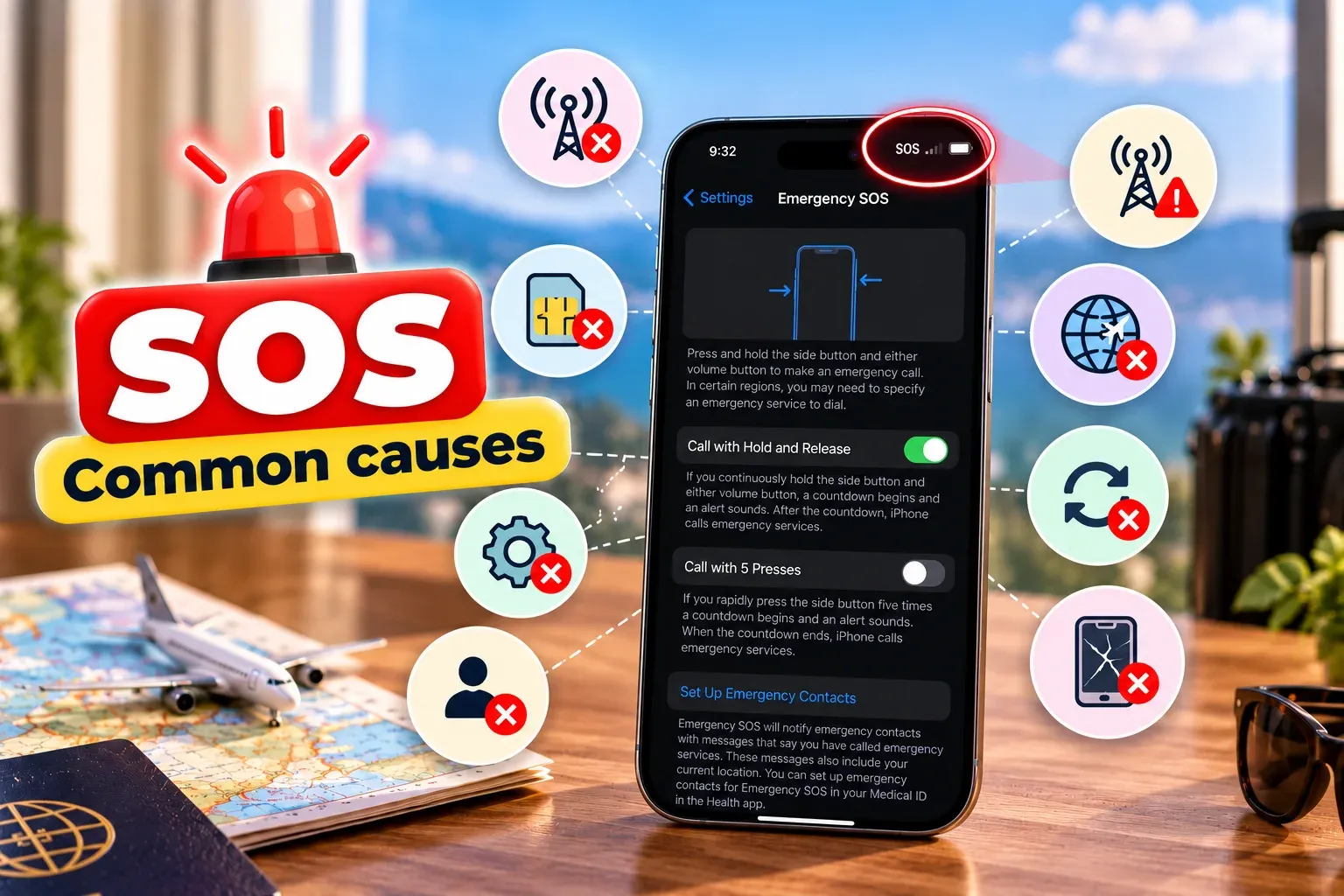
Common causes include:
- Poor coverage: You're outside your carrier's coverage area or somewhere with weak reception.
- Carrier outage: Your network provider is experiencing a temporary service interruption.
- SIM or eSIM problems: Your mobile line is inactive, incorrectly configured, or not detected.
- Incorrect settings: Cellular service is disabled or network selection isn't working correctly.
- Account issues: Your mobile plan is suspended, inactive, or restricted.
- International roaming: Your carrier cannot connect to a supported network abroad.
- Outdated software: iOS or carrier settings may need updating.
- Hardware damage: A damaged cellular component may prevent your phone from connecting.
If your phone keeps going into SOS mode, check whether the issue happens everywhere or only in certain locations. This can help identify whether coverage or the device itself is responsible.
How to Fix SOS Only on iPhone: 9 Steps
Try these fixes in order, starting with the simplest. Many iPhone SOS mode problems can be resolved without resetting your device.
1. Check your signal and carrier coverage
Move outdoors or to an area where your carrier normally provides reliable coverage.
Use Wi-Fi to check your provider's coverage map or outage alerts. If other people using the same carrier are experiencing problems, a temporary network outage may be responsible.
2. Turn Airplane Mode on and off
Switching Airplane Mode on and off forces your iPhone to attempt a fresh cellular connection.
- Open Settings.
- Enable Airplane Mode.
- Wait at least 15 seconds.
- Disable Airplane Mode.
- Check whether cellular service returns.
Apple recommends this as an initial troubleshooting step.
3. Restart your iPhone
Restarting your phone can resolve temporary software or network connection problems.
On iPhones with Face ID, press and hold the side button and either volume button until the power-off slider appears. Switch off the device, wait about 30 seconds, and turn it back on.
On other iPhone models, the restart buttons may differ.
4. Check your SIM or eSIM
A missing, inactive, or incorrectly configured SIM can prevent your iPhone from connecting.
For physical SIM cards: If your iPhone has a SIM tray, remove the card, inspect it for damage, and reinsert it correctly. Contact your carrier if it needs replacement.
For eSIMs:
- Open Settings → Cellular or Mobile Service.
- Select your mobile line.
- Make sure Turn On This Line is enabled.
- Confirm that the line appears in your cellular settings.
If your eSIM is missing or inactive, contact your provider for activation assistance.
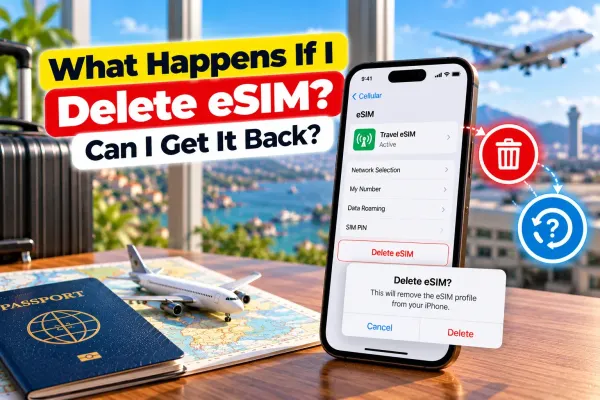
Important: Don't delete your eSIM during initial troubleshooting. You may need your provider's help to reinstall it.
5. Check your carrier account and network outages
If your phone is stuck on SOS mode despite good coverage, contact your mobile carrier.
Ask them to verify that your account is active, your plan is correctly provisioned, and your device isn't blocked from network service.
Also confirm whether your area is experiencing an outage.
6. Install carrier settings and iOS updates
Carrier settings and iOS updates can resolve compatibility or connection issues.
Check carrier settings:
- Connect your iPhone to Wi-Fi.
- Open Settings → General → About.
- Install an update if prompted.
Check iOS updates:
- Open Settings → General → Software Update.
- Install an available compatible update.
Restart your iPhone if required, then check your connection.
7. Check network selection and Voice & Data
Incorrect network selection or an unsupported network mode can interfere with cellular connectivity.
Open Settings → Cellular → Network Selection, if available, and select Automatic.
You can also review Voice & Data settings for the affected line. If your carrier supports it, temporarily switching from 5G to LTE (Long-Term Evolution, the technology commonly used for 4G) may help troubleshoot connection problems.
Settings and available options vary by carrier and iPhone model.
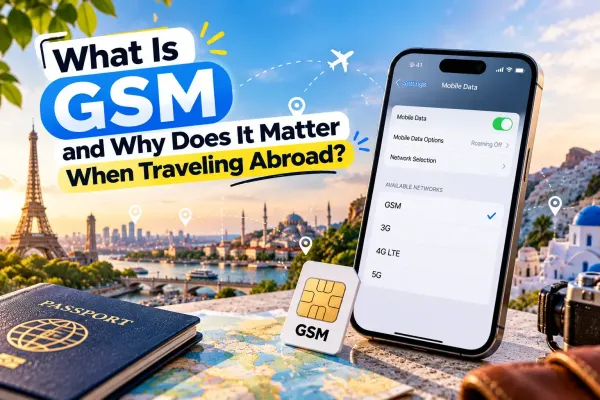
Read more: For a clearer understanding of why network compatibility matters abroad, read What Is GSM and Why Does It Matter When Traveling Abroad?
8. Check roaming settings if you're abroad
If you're travelling internationally, confirm that your carrier supports service in your destination.
For mobile data, open Settings → Cellular, select the relevant line, and check Cellular Data Options → Data Roaming.
Enable data roaming only when your plan or eSIM provider requires it. Roaming charges may apply.
Remember that enabling data roaming doesn't automatically fix a SIM or eSIM that cannot register on a supported network.
Read more: To keep these settings from triggering unexpected charges, follow How to Prevent Roaming on iPhone & Avoid Bill Shock.
9. Reset network settings
If the earlier fixes fail, reset your iPhone's network settings.
- Open Settings → General.
- Select Transfer or Reset iPhone.
- Tap Reset.
- Choose Reset Network Settings.
- Confirm the action.
This removes saved Wi-Fi networks and passwords, along with certain cellular and Virtual Private Network (VPN) configurations.
It doesn't erase your personal files or ordinarily remove installed eSIM profiles. However, resetting network settings is different from selecting Delete All eSIMs, which removes eSIM profiles.
Because this resets saved connectivity settings, use it only after trying the earlier solutions.
Read more: If your messages also change from blue to green after switching lines, see Why Are My Messages Green When They Should Be Blue on iPhone? 6 Reasons & Easy Fixes.
How to Fix SOS Only on iPhone When Traveling Abroad
International travel can trigger SOS Only when your home carrier cannot connect to a roaming partner or your travel eSIM hasn't activated correctly.
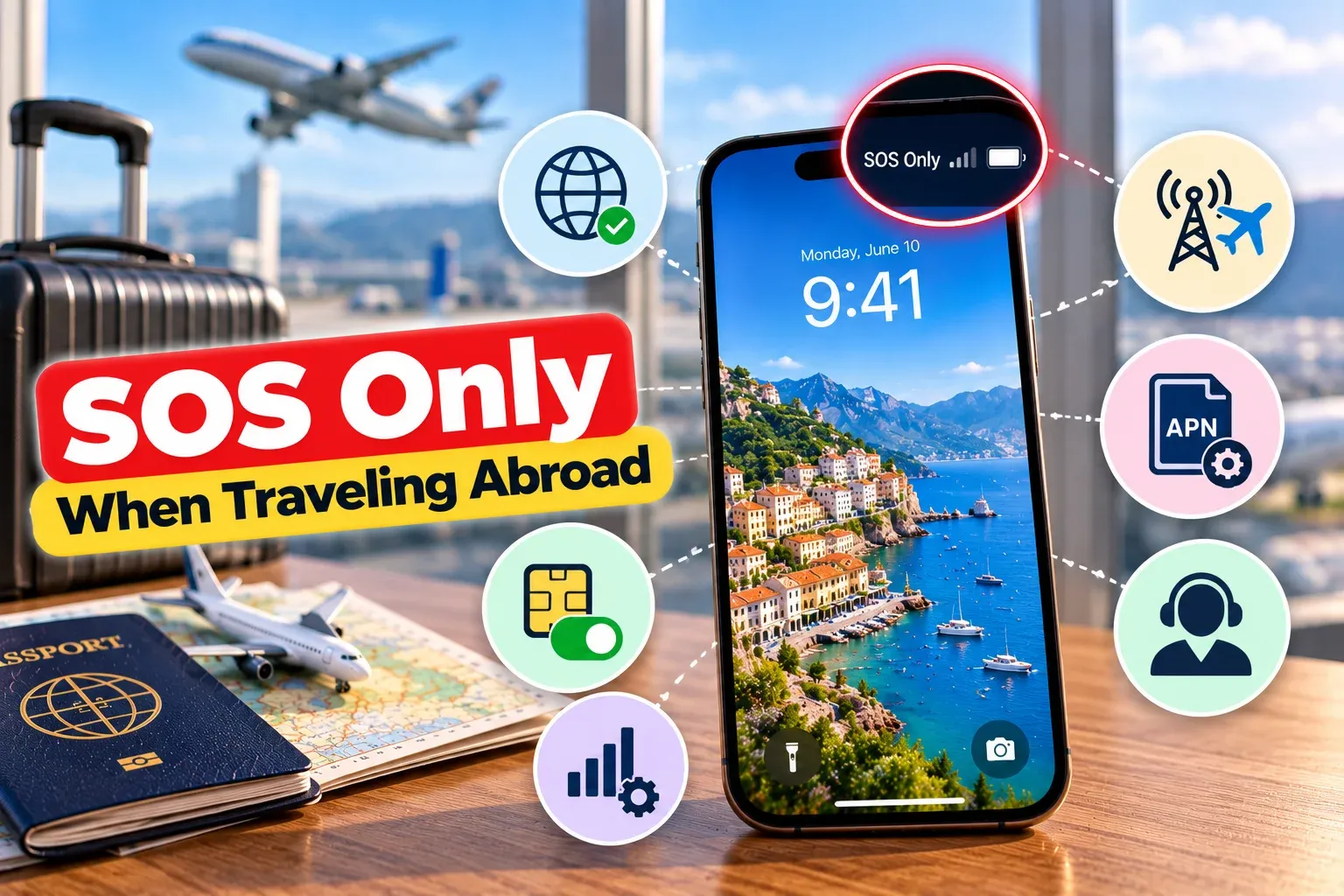
If your phone keeps going into SOS mode after landing, follow these checks:
- Confirm roaming coverage: Check whether your home carrier or travel eSIM supports the destination.
- Enable the correct line: Go to Settings → Cellular and confirm that the intended SIM or eSIM is turned on.
- Select your data plan: Under Cellular Data, choose the line you want to use for mobile internet.
- Review roaming settings: Follow your provider's data roaming instructions for that specific line.
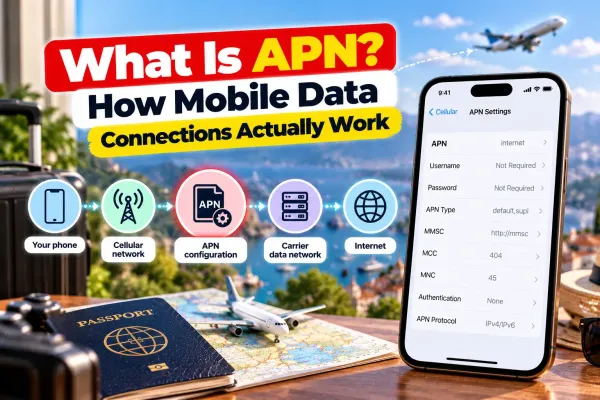
- Check network configuration: Follow any Access Point Name (APN) instructions supplied by your eSIM provider. Try manual network selection only if recommended.
- Contact your provider: If activation or network registration fails, ask the carrier or eSIM provider to check your account and connection.
If your travel eSIM works but your home line still shows SOS Only, the problem may be limited to your home carrier.
A data-only eSIM can provide internet access, but it won't automatically restore regular calls or SMS on your home number.
If you're also wondering, "why is my cellular data not working", check which SIM or eSIM is selected for mobile data, whether your plan is active, and whether data roaming is enabled when required by your provider.
Read more: If your phone still has service and you only want to reduce data use, see Low Data Mode on iPhone: What It Does and When to Use It before changing connection settings.
When Should You Contact Apple or Your Carrier?
If your phone remains in SOS Only after troubleshooting, the next step depends on what's causing the problem.
Contact your carrier if:
- Your account or mobile plan isn't active.
- There's an outage or network coverage problem.
- Your physical SIM needs replacing.
- Your eSIM activation or transfer has failed.
- Roaming or network registration isn't working.
Contact Apple Support if:
- Your carrier confirms that your account and network are working.
- SOS Only continues in areas with reliable coverage.
- The problem started after your iPhone was dropped or exposed to liquid.
- A hardware fault is suspected.
On supported iPhones running iOS 18 or later, the Apple Support app can also provide additional diagnostics to help investigate cellular problems.
Read more: To track how much data those apps use during your trip, follow How to Check Data Usage on iPhone: Full Guide (Daily, Monthly, Wi-Fi & Roaming).
Stay Connected While Traveling With Jetpac
A compatible travel eSIM can give you a separate mobile data connection abroad without replacing your primary SIM. This can be useful when your home carrier's roaming service is unavailable or expensive.
Jetpac offers an international eSIM covering 200+ destinations, with one reusable profile and automatic switching between supported partner networks. It also supports hotspot sharing, subject to your plan's data and speed conditions.
With a Jetpac eSIM for international travel, you can access maps, translation tools, ride-hailing apps, and messaging services over supported local mobile networks.
However, a travel eSIM cannot repair hardware damage, bypass device compatibility requirements, or guarantee coverage everywhere.
When looking for the best eSIM for international travel, first check if an iPhone is unlocked by going to Settings → General → About → Carrier Lock. If it says "No SIM restrictions," your iPhone is unlocked.
Also confirm eSIM compatibility, destination coverage, and activation requirements before purchasing a plan.
FAQs
Why does my iPhone say SOS Only when I have signal?
Your iPhone may detect an available network without being able to register with your regular carrier. This can happen because of an outage, account restriction, or unsupported network.
Can I make regular calls when my iPhone says SOS Only?
Regular cellular calls through the affected line generally won't work. Emergency calling may still be possible in supported regions. Wi-Fi Calling may also work if your carrier supports it and the feature is already configured.
Does SOS Only mean my SIM card is damaged?
No. Poor coverage, network outages, inactive service, or incorrect settings can also cause SOS Only. A damaged SIM is only one possibility.
Why does my iPhone say SOS Only after an iOS update?
Temporary software or carrier settings issues may prevent your iPhone from reconnecting. Restart the device, check carrier settings, and confirm your mobile line is enabled.
How do I fix SOS Only after switching to a new eSIM?
Make sure the new eSIM is activated and enabled in Settings → Cellular. If your phone cannot connect, contact your eSIM provider to verify activation.
Why does my iPhone show SOS Only only in certain locations?
Your carrier may have weak coverage in those areas, especially inside buildings or remote locations. Local network outages can also affect connectivity.
Can a carrier outage cause SOS Only on an iPhone?
Yes. A carrier outage can prevent your iPhone from registering with its normal network. Check your provider's outage information or contact support.
Will resetting network settings remove my eSIM?
No. Reset Network Settings doesn't ordinarily remove installed eSIM profiles. Delete All eSIMs is a separate option that removes them.
Why does my iPhone say SOS Only when traveling internationally?
Your carrier may lack roaming coverage, your subscription may not support international service, or your travel eSIM may have an activation problem. Check coverage, line settings, and provider instructions.
What should I do if SOS Only won't go away?
If your phone is stuck on SOS mode after troubleshooting, contact your carrier to confirm your account and network status. If they find no issue, contact Apple Support for device diagnostics.
Disclaimer
This article is for educational and general troubleshooting purposes only. Information is based on publicly available guidance reviewed in October 2026. iPhone settings, cellular network availability, emergency calling features, roaming policies, and eSIM services may vary by country, carrier, device model, and software version. Always verify current instructions with Apple and your mobile provider before changing network settings. Jetpac is not responsible for inaccuracies, subsequent changes, or losses arising from reliance on this information.
Get connected as soon as you land with a Jetpac travel eSIM.